Frequently asked questions (FAQ)
Questions about the WattWächter Gas. The web interface, Wi-Fi, updates and interfaces work as on the WattWächter Plus — see Web interface, Settings and Troubleshooting.
Which variant do I have?
Open the web interface. On the start page, "About this device" shows the variant: GW-MF (magnetic field sensor) or GW-ID (inductive sensor). Via the API, GET /api/v1/system/info returns the field esp.model_id with ww_gw_mf or ww_gw_id.
Nothing is counted
- Is the sensor in the right place? With the magnetic field sensor the field strength (
|B| … µT) in the dashboard should change while the meter runs; with the inductive sensor the LED should go dark briefly on every revolution. If nothing happens, the sensor is not in the right place — see Mount the sensor on the meter. - Does the variant fit the meter? A magnetic field sensor needs a magnet in the register, an inductive sensor a metal marker — see Supported meters.
- Magnetic Field: If the field strength changes but nothing is counted, lower the sensitivity — see Adjusting sensitivity or minimum amplitude.
- "Sensor not reachable" message in the dashboard? Then the sensor built into the device is not working — see Troubleshooting.
Too much is counted
- Magnetic Field: raise the sensitivity.
- Inductive: raise the minimum amplitude — but only if counts occur while nothing is turning.
Then enter the reading from the meter again.
The meter reading differs from the meter
Enter the reading from the meter again under Settings → Gas/water meter → Current meter reading. From then on the device counts on from this value; the correction does not count as consumption.
Check the volume per revolution first: if it is wrong, the difference grows with every revolution.
Other causes:
- The sensor was rotated after the meter reading was entered. This throws the reading off — leave the sensor as it sits once you have entered the reading.
- The device was without power for a longer time. Whatever the meter counts during that time goes unseen. A restart, on the other hand, takes less than two seconds and does not matter.
- Revolutions are missed or counted twice — see the two questions above.
Why does the flow rate only drop to 0 after a delay?
Between two counted steps the device does not know whether the wheel is still turning slowly or has stopped. It therefore estimates when the next step would be due and only sets the flow rate to 0 once that time has clearly passed — after 5 seconds at the earliest and 30 minutes at the latest. Until then the value shown is already decreasing. The slower the meter ran last, the longer this takes.
Does the device restart at night?
No. Unlike the WattWächter Plus, the WattWächter Gas does not do a nightly maintenance restart, so that no revolution is lost. At night it only checks for updates and only restarts when it installs an update automatically (see Settings → Updates).
Factory reset
How to reset the WattWächter Gas — with the function button or by unplugging and replugging it several times — and what is deleted is described on the Factory reset page.
How do I find my WattWächter's IP address / mDNS name?
To access the local web interface or API, you need your WattWächter's network address. There are two ways to find it:
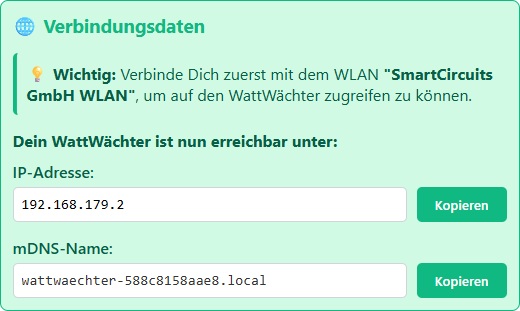
1. After AP setup
If you set up the WattWächter via the Access Point, the IP address and mDNS name are displayed at the end of the setup process.
2. In your router
In your router's device list (e.g., Fritz!Box, Speedport), you'll find the WattWächter listed as wattwaechter-XXXXXXXXXXXX. The assigned IP address is also shown there.
mDNS name
The mDNS name has the format wattwaechter-XXXXXXXXXXXX.local (where XXXXXXXXXXXX is the device's MAC address). This allows you to reach the device in your browser without knowing the IP address — e.g., http://wattwaechter-3432df43d331.local.
Can I use the WattWächter app?
Yes. From version 2.2 the WattWächter app sets up the WattWächter Gas via Bluetooth — Wi-Fi, meter details and, if you like, the link to the cloud. How it works is described under Setup → Option A: Via the app. Without the app you set up the device in the browser via its access point.
How do I connect the device to Loxone or a PLC?
Via Modbus TCP. Unlike the Plus, the WattWächter Gas does not provide SunSpec but its own register block from address 41000 — see Modbus TCP → Register block. For Loxone there are ready-made templates to download, see Loxone. For a PLC see Siemens S7.