Home Assistant
Home Assistant reads the WattWächter USB with its built-in EDL21 integration. The head is plugged directly into the Home Assistant server (Raspberry Pi, mini PC or similar); you need no Wi-Fi, MQTT or add-on.
SML meters only
EDL21 only understands SML, which almost all modern meters send. It cannot read meters that send D0 text, whether on their own (e.g. eBZ DD3) or only on request (marked with footnote ⁴ in the Supported meters table). For those, use vzlogger, ioBroker or a Python script. The test in the setup shows what your meter sends.
Prerequisites
- WattWächter USB is set up and the green LED is flashing
- Home Assistant server with a free USB port within cable reach of the meter
- Meter unlocked (PIN, Inf mode active)
Step 1 — Find the device path
- In Home Assistant, open Settings → System → Hardware
- Click All hardware
- Search for
CP2102N
You will find an entry with a device path of the form:
/dev/serial/by-id/usb-Silicon_Labs_CP2102N_USB_to_UART_Bridge_Controller_<serial>-if00-port0
Copy this path. Unlike /dev/ttyUSB0, it stays the same after a reboot or on a different USB port.
Step 2 — Add the EDL21 integration
- Open Settings → Devices & services
- Click Add integration at the bottom right
- Search for
edl21and select the integration
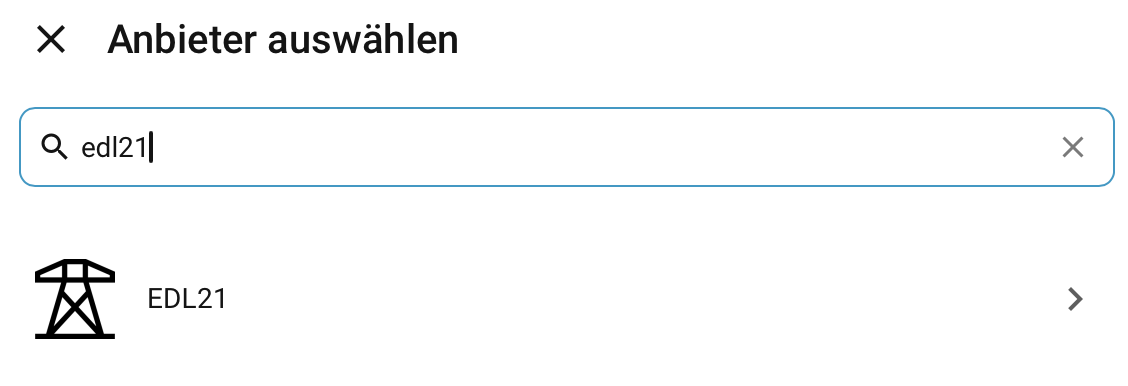
In the following dialog, enter the path from step 1 as the USB device path and confirm with OK.
Step 3 — Name the device and assign an area
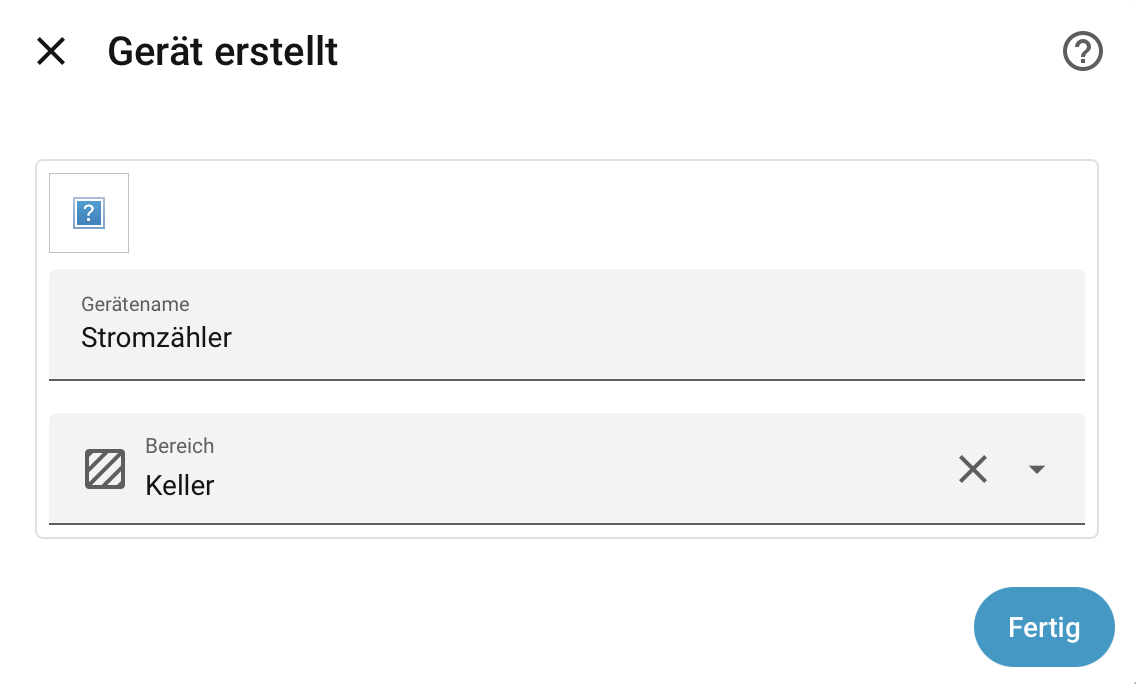
Home Assistant creates a new device. Give it a meaningful device name (e.g. Electricity meter) and assign an area (e.g. Basement). Then click Finish.
Step 4 — Check the sensors
Under Settings → Devices & services → EDL21 you will find the device with its sensors.
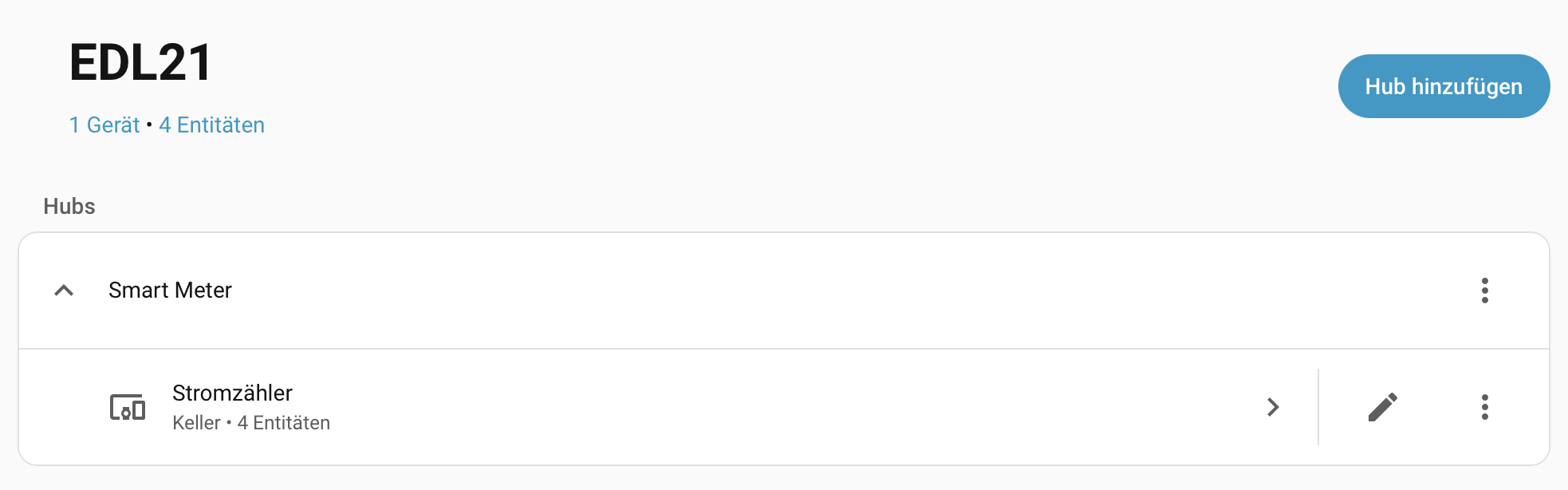
Which sensors appear depends on what your meter sends. Typical ones are:
- Current total active power (W), negative when feeding in
- Positive total active energy (Wh), import
- Negative total active energy (Wh), export
- Metering point ID
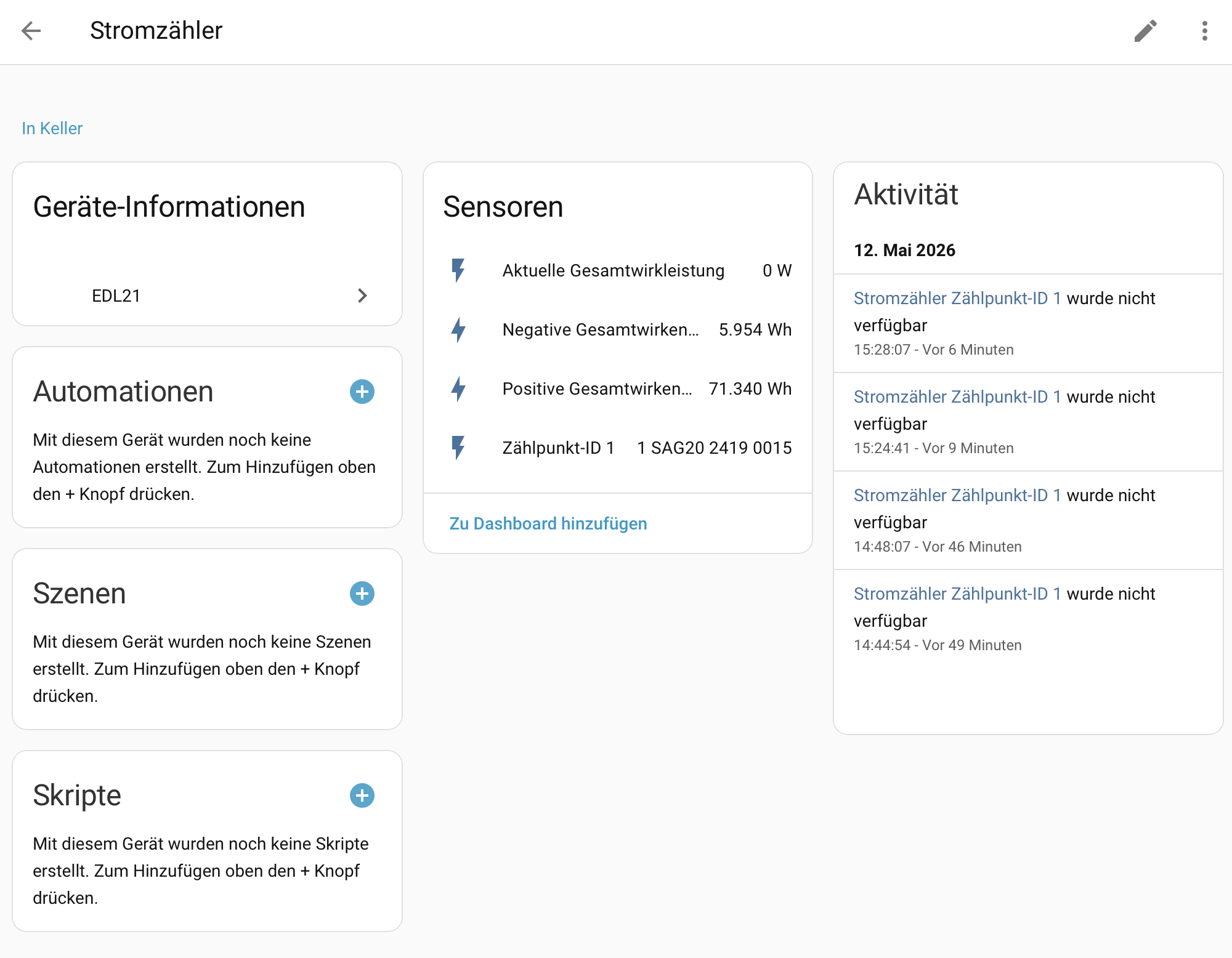
You can use the energy sensors directly in the Energy dashboard: Settings → Dashboards → Energy → Electricity grid, then add Positive total active energy as grid consumption and Negative total active energy as return to grid.
Troubleshooting
| Problem | Solution |
|---|---|
No entry with CP2102N under Hardware |
Check the cable at both ends and try another USB port. If Home Assistant runs in a virtual machine, the USB device has to be passed through to the VM. |
| Integration added, but no sensors | Is the green LED flashing? If not, the head is not positioned correctly or the meter is not sending, see Setup. If the meter speaks IEC 62056-21, EDL21 cannot read it. |
| Meter readings only, no power | The meter is not unlocked: set PIN to Off and Inf to On, see Meter preparation |
| Meter appears twice | The head is set up in two integrations, or a second program (e.g. an add-on) accesses the same port. Use only one integration. |
Further reading: Home Assistant → EDL21