LED & button
The WattWächter Gas shows its state with an RGB LED and has a function button. The colours and the button functions are the same as on the WattWächter Plus.
LED Status Indicator
The RGB LED shows the current device status. The WattWächter Gas has one RGB LED; the picture shows the WattWächter Plus with its two LEDs.
When several states are active at the same time, the LED shows the one with the highest priority. From high to low: factory reset, sensor not detected, Bluetooth, firmware update, critical error, meter waiting for input, warning, start-up, normal operation. So while Bluetooth mode is running, you will see neither yellow nor red pulsing. The fast red blinking, however, also shows during Bluetooth mode.
What you can do for each colour is described under Troubleshooting.
| Status | Color | Mode | Meaning |
|---|---|---|---|
| Normal operation | Green | Solid, dimmed | Everything OK |
| Start-up | Green | Pulsing | The device is starting |
| Warning | Yellow | Pulsing | No Wi-Fi connection: connecting failed or the connection was lost |
| Meter waiting for input | Yellow | Pulsing | Meter password missing or rejected (NES/Echelon meters on the WattWächter Plus only) |
| Critical error | Red | Pulsing | The built-in sensor is not working or firmware update failed |
| Firmware update | Magenta | Solid | OTA update in progress |
| Sensor not detected | Red | Fast blinking | The sensor in the sensor head is not detected; fault in the device (firmware 1.3.3 and later), see Troubleshooting |
| BLE pairing mode | Blue | Pulsing | Bluetooth waiting for a connection; switches off after 15 minutes without a connection |
| BLE connected | Blue | Solid | Bluetooth device connected |
| Factory reset | Red | Solid | Function button is being held; the factory reset follows after 7 seconds |
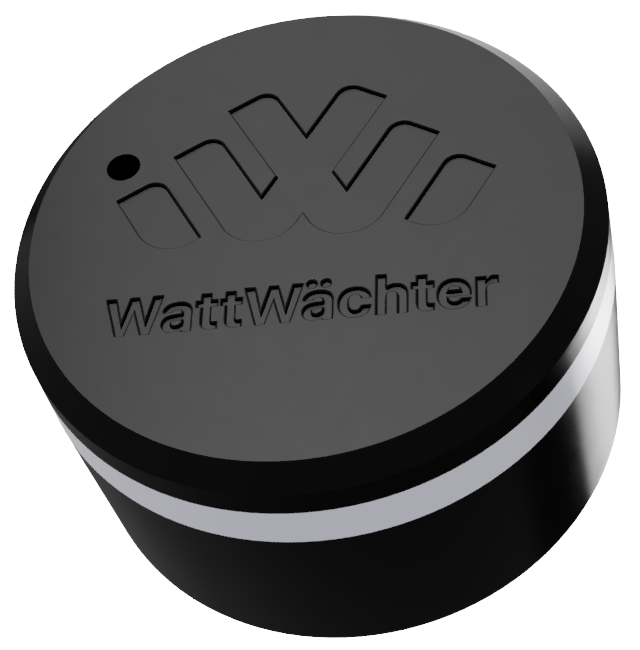
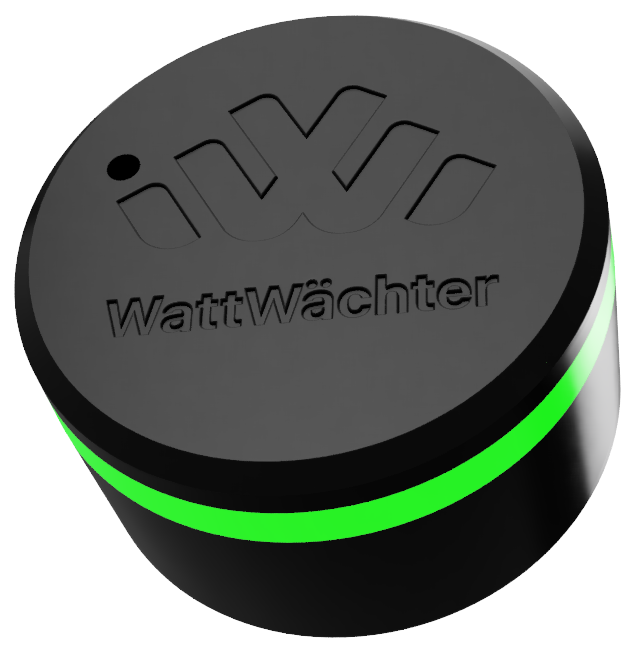
The LED shows every revolution
On the WattWächter Gas the LED goes dark for about 0.6 seconds on every counted revolution. While aligning the sensor on the meter you can see without a laptop whether it counts. If the built-in sensor is not working, the LED shows Critical error (red, pulsing); the device retries every 10 seconds — see Troubleshooting. If the LED blinks red rapidly, the sensor is not detected at all — see LED blinks red rapidly.
Disable LED
The LED can be turned off entirely — see Settings → Status LED. It still shows critical error (red, pulsing), sensor not detected (red, fast blinking) and factory reset (red, solid).
Function Button
The WattWächter has a function button that can be used to trigger various actions. The button can be pressed with a thin object such as a SIM ejector tool, a toothpick, or an unfolded paper clip.
The button sits to the left of the W logo.
Activate BLE mode and access point (short press)
A short press (less than 2 seconds) on the button activates Bluetooth mode (BLE) and the device's access point. The LED starts pulsing blue, indicating that the device is ready to be paired via the app. Through the access point you reach the web interface at http://192.168.4.1, even if the device is not on your Wi-Fi.
This is useful when:
- You want to connect another smartphone to the WattWächter
- You need to repeat the initial setup
- You want to change WiFi settings via the app
BLE mode switches off after 15 minutes without a connection. The access point switches off after 15 minutes if nobody connects to it.
Save Data (short press)
A short press also saves the current measurement data from the RAM buffer permanently to internal storage.
Before Disconnecting Power
The WattWächter buffers measurement data in RAM and periodically writes it to storage. If you disconnect the device from power without pressing the button first, you may lose up to 6 hours of measurement data in the worst case.
Recommendation: Press the function button briefly before unplugging and wait until the LED pulses blue — the data is then saved.
Factory Reset (long press > 7 seconds)
Holding the function button for at least 7 seconds triggers a factory reset. How it works in detail and what it deletes is described on the Factory reset page.
Overview
| Action | Duration | Function |
|---|---|---|
| Short press | < 2 seconds | Activate BLE and access point, save data |
| Long press | from 2 seconds | LED red: warning, releasing cancels |
| Long press | ≥ 7 seconds | Factory reset |